
1) I can't join Meet video calls on my dual-SIM Phone
Ans: We suggest you turn off the second SIM or switch to Wi-Fi.
2) I can't open Meet on my mobile device
Ans: Each version of the mobile Meet app is supported for 6 months after release. Update to the latest version if an older version of the app is installed on your device.
3) Join a video meeting in Classroom (Computer)
Ans: If your teacher turns on Meet for Classroom, you can join a video meeting for your class. You can join a class video meeting after the teacher starts the meeting.
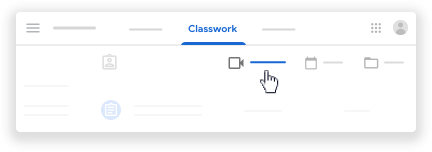
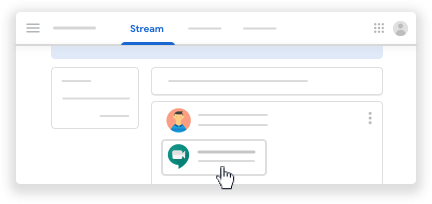
 select the Classroom account.
4) Join a video meeting in Classroom (Android)
If your teacher turns on Meet for Classroom, you can join a video meeting for your class. You can join a class video meeting after the teacher starts the meeting.
To use Meet, you have to sign in to Classroom with a school account. Your account looks like you@yourschool.edu.
- Tap Classroom
 .
. - Tap the class.
- Choose an option:
- At the top of the Stream or Classwork page, tap Meet
.
- On an announcement or post, tap the video meeting link.
- At the top of the Stream or Classwork page, tap Meet
- (Optional) To allow Meet to use your camera and microphone, tap Allow.
- Before you join, at the bottom, make sure you’re signed in with your school account. If you need to switch accounts, tap Switch
 select the Classroom account.
 - To join the class video meeting, tap Join meeting.
5) How to Join with a meeting link or invitation
 select the Classroom account.
6) How to fix any error related with audio/video during google class meeting
Check & update your Android version
You can find your device's Android version number, security update level, and Google Play system level in your Settings app. You'll get notifications when updates are available for you. You can also check for updates.
See which Android version you have
- Open your phone's Settings app.
- Near the bottom, tap System
 Advanced
  System update.
 - See your "Android version" and "Security patch level."
 Advanced
  System update.